Dig Zones
Documentation version: 0.6.1
A Dig Zone is an axis-aligned box over one Unity Terrain. Inside it the terrain is replaced by a voxel grid that can be dug, filled and painted.
Settings
| Setting | Meaning |
|---|---|
| Terrain | The terrain this zone cuts into. The whole footprint must lie on it. |
| Voxel Size | Edge length of one voxel in metres. |
| Cells | Grid size in voxels. The grid stores cells + 1 samples per axis. |
| Chunk Cells | Voxels per chunk edge. Smaller chunks remesh faster in Udon but cost more draw calls. PC 16, Quest 8–12. |
| Depth Below Terrain / Headroom Above Terrain | How far Fit To Terrain extends the box below the lowest and above the highest terrain point. Bake also keeps Headroom Above Terrain over the terrain: see Zone height. |
| Border Voxels | An untouched margin inside the terrain hole edge and above the zone floor, so the dug mesh always meets the terrain cleanly. 2–3 is typical. |
| Max Brush Radius | The largest brush radius accepted from players, in metres. |
| Material | The zone material. Baking creates one from the terrain layers if it is empty. |
| Chunk Layer | Layer of the chunk renderers and colliders. Dig tools raycast against it. |
| Baked Lighting | On by default. Chunk meshes get lightmap UVs and are marked Contribute GI, so baked lighting covers them like the terrain. See Baked lighting. |
| Lightmap Scale | Multiplies the chunks' lightmap resolution. At 1 the chunks get the terrain's Scale In Lightmap (the same texel size as the terrain), but at least 16 texels across a chunk, since each chunk is its own lightmap island and a coarser one shows its edges. Raise it for sharper baked shadows in dug areas, lower it to save lightmap space. |
| Trees / Details | On by default. Show the terrain's trees and details (grass, flowers, detail meshes) inside the zone, where the terrain hole hides them. See Trees and details. |
| Data | The DigZoneData asset holding the grid. Created on the first bake under Assets/DigHoleIt/Zones. |
In the Scene view:
- the orange box is the zone;
- the green box is the diggable area (the zone minus Border Voxels). Digging and sculpting only happen inside it.
Inspector buttons
| Button | What it does |
|---|---|
| Fit To Terrain | Sets the box height to cover the terrain under it, staying on the voxel lattice. |
| Bake | Bakes from the terrain and keeps sculpting and paint wherever the zone still covers them. Raises the top of the box first if the terrain reaches it. |
| Sculpt Tool | Opens the editor brushes. |
| Remesh All | Rebuilds every chunk mesh from the grid. |
| Apply Material | Refills the material from the terrain layers and baked textures. |
| Reset To Terrain | Bakes from scratch, discarding all sculpting and paint. |
| Clear | Removes the chunk objects and fills the terrain hole back in. The grid stays in the data asset until the next Bake. |
| Delete Zone | Fills the terrain hole back in and deletes the zone. Undoable. |
| Add Light Probes / Update Light Probes | Places a Light Probe Group over the zone, 0.5 m and 3 m above the terrain. See Baked lighting. |
| Add VRChat Runtime / Add Standalone Runtime | Adds the runtime for the project type (VRChat or standalone). Creating or baking a zone adds none. Remove takes it off again. |
The info box shows the grid's size, its compressed size on disk, and how many chunk objects the zone has. Only chunks with a surface get an object; a zone baked by an older version has one per chunk until it is baked again.
Terrain layers
The zone shades with as many terrain layers as its terrain has, up to 16. Bake copies the layers into the zone material and bakes one splat texture per four layers; the material switches to the matching shader variant (4, 8, 12 or 16 layers). DigTerrain Lite (Quest) shades up to 8. Adding or removing terrain layers needs a Bake (or Apply Material after a Bake).
Paint can use any of the terrain's layers. Each chunk mesh holds up to 4 painted layers plus dug soil; in a chunk painted with more, the extra layers show automatic shading.
Zone height
The terrain has to fit inside the box: where it pokes out of the top, the voxel surface would be cut off flat. So when the terrain rises into the zone's top voxel (or above it), Bake first raises the top until it is Headroom Above Terrain over the highest terrain point, and logs it. The bottom stays where it is, so the zone stays on its voxel lattice and keeps its sculpting. This happens for every bake: the Bake button, re-baking after dragging the handles, and following terrain edits.
Where the terrain comes down to the zone's floor, the bake warns instead: move the zone down or use Fit To Terrain.
Trees and details
A terrain doesn't draw its trees or its details (grass, flowers, detail meshes) inside its holes, and it deletes the trees there. So a zone shows them itself:
- Trees. When the zone cuts its hole it takes over the terrain's trees inside it (they are kept in the data asset) and places a copy of each tree prefab, with the instance's rotation, width and height. Like the terrain, the copies don't use the prefab root's scale. They keep the prefab's colliders and LODs. A tree stands where it was placed: on the ground, or where DigHoleIt: Paint Trees put it, which can be a pit or tunnel floor, a slope, a wall or a cave ceiling (hanging down). Re-baking keeps each tree where it is. When the hole is filled back in (Clear, Delete Zone), the trees go back to the terrain, onto its surface and upright.
- Details. The terrain keeps its detail layers inside its holes, so the zone reads them and scatters the same instances the terrain would: same positions, sizes and healthy/dry colours. They grow on the zone's top surface as it is when they are built, so also on the floor of a pit dug in the editor.
- Details on walls and ceilings. The terrain's detail map is flat, so it only covers the top surface. Details painted with DigHoleIt: Paint Details anywhere else (walls, cave ceilings, tunnel floors) are kept by the zone itself (in its data asset) and grow out of the surface. Re-baking keeps them; filling the hole back in doesn't give them to the terrain (it can't hold them), and deleting the zone deletes them. They are merged into one mesh per chunk column and drawn with the DigHoleIt/DigDetail shader. Grass and billboard grass become two crossed quads; detail meshes keep their mesh and the texture of their material. The wind follows the terrain's Wind Settings for Grass, and details beyond the terrain's Detail Distance are not drawn.
- Digging. A tree or detail stays while the surface still passes where it stands. Digging the ground away under it, or burying it, removes it: in the editor with the brushes, and for players at runtime (VRChat and standalone, with no extra setup). A tunnel under it leaves it standing as long as the roof holds. Undo or a reset brings it back.
To paint trees and details inside a zone, use DigHoleIt: Paint Trees and DigHoleIt: Paint Details in the terrain's Paint Terrain list. They are Unity's own tree and detail brushes, with the same settings and inspector, but they also reach inside Dig Zones, where Unity's brushes can't hit the terrain. Trees painted in a zone go into the zone's list; outside zones both tools paint the terrain as usual.
| Trees and grass in a pit | Under a cave ceiling |
|---|---|
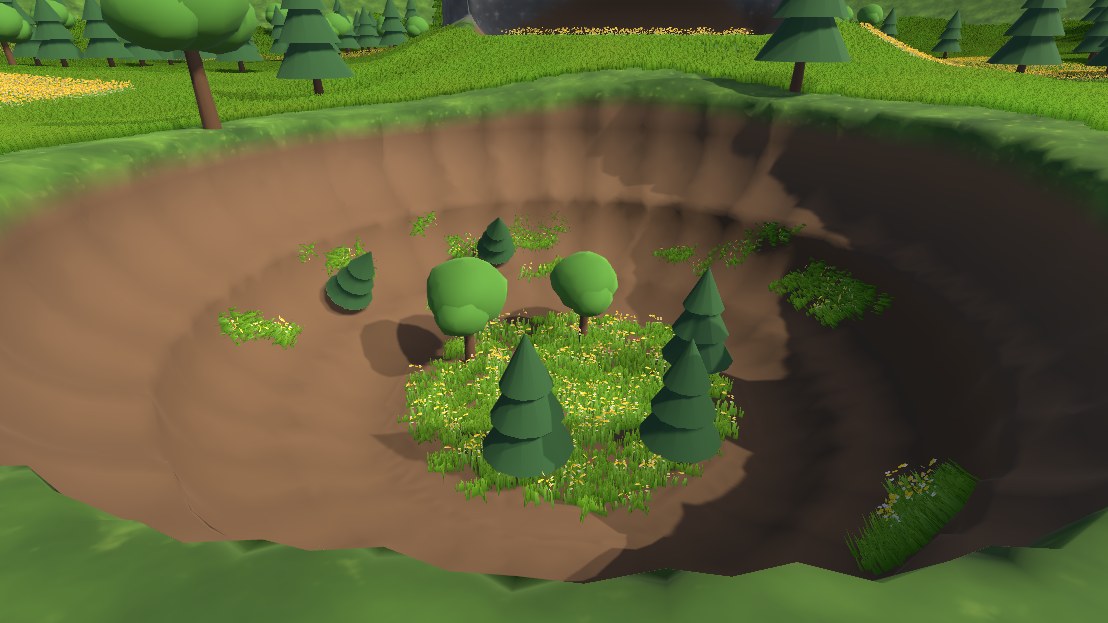 | 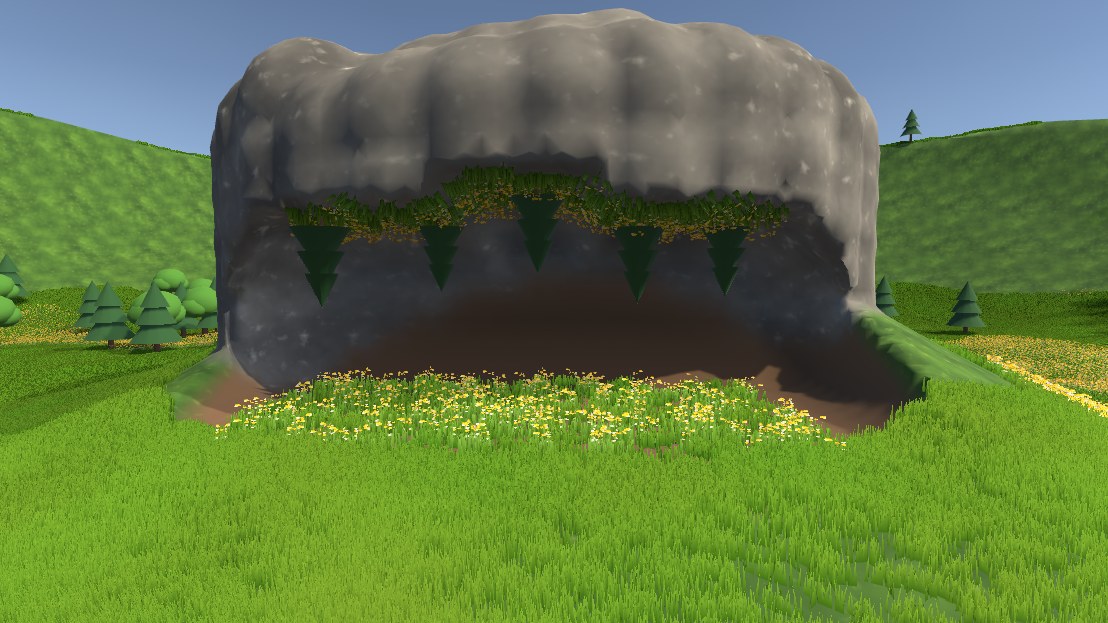 |
Inside a zone the brushes paint the surface under the mouse, seen from any angle. The tree brush lies on that surface (a floor, a slope or a wall; Brush Axis In Zones under the tool's settings turns it flat like Unity's brush, World Up, or towards the camera, View) and drops its trees onto the voxel surface within the brush radius of the mouse. Tree Direction In Zones sets which way they grow: Upright (straight up, like on the terrain, and hanging straight down from cave ceilings) or Along Surface (out of the surface: tilted on slopes, sideways out of walls). On the top surface the detail brush paints the terrain's detail map, and keeps what it paints only where the surface details grow on (the zone's top surface, or the terrain) is within the brush radius of the mouse in height. On walls, cave ceilings and tunnel floors it scatters details into the zone's own list instead, as dense as Target Strength asks (Shift erases them, Ctrl erases only the selected detail); they appear when the stroke pauses or ends. So a stroke in a pit stays in the pit and leaves the rim and the terrain around the hole alone, and a stroke on the terrain beside a pit leaves the pit floor alone.
Surface Angle (both tools) paints only surfaces whose angle from facing straight up is in a range: 0° flat ground and floors, 90° walls, 180° cave ceilings. The Floors (0-45°), Walls (45-135°) and Ceilings (135-180°) buttons set common ranges, All turns it off. It also applies to terrain slopes outside zones. Erasing ignores it.
Zones follow changes to the terrain's trees and details: painting, editing the prototypes, the terrain's detail and wind settings, and undo rebuild them when the stroke ends. Details painted into a pit grow on its floor. Unity's Mass Place Trees and its own tree brush can't put trees inside a zone (the terrain refuses trees in its holes); use DigHoleIt: Paint Trees there. Uncheck Trees or Details on a zone to hide them there. The zone still keeps its trees and gives them back when its hole is filled.
Each tree is a GameObject and each chunk column with details is one renderer (one draw call per detail type in it). For Quest, keep detail density and Detail Distance modest.
Baked lighting
Lights set to Baked don't light moving or changed objects directly, only through light probes. With Baked Lighting on:
- Bake the zone, then bake the scene's lighting (Window > Rendering > Lighting). The chunks get lightmaps like the terrain.
- Click Add Light Probes before baking lighting. A chunk that is dug at runtime can't keep its lightmap (its mesh changed), so it switches to light probes; Reset gives it its lightmap back.
- Dug areas get darker with depth below the original surface (Darkening Below Surface and Darkening Depth on the material), because the probes sit above the ground and would light a cave like the surface.
Chunk meshes end just past the terrain hole edge, by the zone material's Hole Overlap (0.1 m by default): enough to close the seam, too little to shadow the terrain in the lightmapper. Starting a lighting bake re-applies each zone's lighting settings (static flags, lightmap UVs, Scale In Lightmap), so changing the terrain's Scale In Lightmap only needs a new lighting bake.
Sculpting in the editor changes the chunk meshes, so bake lighting again after sculpting. Turn Baked Lighting off for zones that should only use light probes; that also skips the lightmap UVs, which make a big zone's bake slower (about 6 ms per chunk).
Moving and resizing
Select the zone and drag the coloured cubes on the faces of its box. Faces snap to whole voxels, and a label shows the size. When you release, the zone re-bakes (turn this off with Re-bake after dragging the zone handles). The Move tool also snaps a baked zone to its voxel lattice.
A re-bake keeps sculpting and paint as long as the voxel size is unchanged and the zone stayed on its lattice. Sculpted voxels that end up outside the zone are stored in the data asset and come back when the zone covers them again. Reset To Terrain discards them.
Following terrain edits
Raise, lower, smooth or paint the Unity terrain as usual. When the stroke ends, every baked zone it touched updates:
- voxels you never sculpted take the new terrain shape;
- sculpted voxels and voxel paint stay as they are;
- the terrain texture blend is copied again;
- trees and details move with the new heights;
- if the terrain rises or sinks out of the zone's box, the zone is fitted and re-baked, keeping the sculpting.
Undoing a terrain edit updates the zones too. Turn it off with Follow terrain edits in the zone inspector. The setting is per user and applies to all zones. Zones whose settings changed since their last bake are skipped until you bake them.
Terrain holes
Each zone cuts a hole in the terrain over its footprint, one voxel inside its edge, so the voxel mesh runs under the terrain border. The zone records which cells it cut and what they were before.
- Delete Zone, deleting the zone GameObject, and Clear fill the hole back in and give the terrain its trees back. Cells another zone still needs are left open, and the trees on them go to that zone.
- Holes left by zones deleted before 0.2 can be filled with Fix Leftover Holes in the terrain tools.
- A duplicated zone (Ctrl+D) gets its own data asset and material the first time it is baked.
Working from the Terrain
Select the terrain, open Paint Terrain and pick DigHoleIt: Dig Voxels or DigHoleIt: Paint Voxels. The Terrain inspector then lists every Dig Zone on the terrain with its full settings and buttons. The Scene view shows each zone's box, diggable area and resize handles.
DigHoleIt: Paint Trees and DigHoleIt: Paint Details paint the terrain's trees and details, inside zones too (see Trees and details).