BlendProperty
เวอร์ชันเอกสาร: 0.2.0 · Release
Blend Property (com.logiccuteguy.blendproperty) เพิ่ม modifier component แบบ Blender ให้ Unity object ที่มี MeshFilter Stack ทำงานจากบนลงล่าง แสดง preview ใน Editor และบันทึกผลเป็น mesh asset โดยค่าเริ่มต้น build จะเก็บ baked mesh ไม่ใช่ stack
ต้องใช้ Unity 2022.3 ขึ้นไป ProBuilder เป็นทางเลือกและ bridge จะเปิดเมื่อมีแพ็กเกจนี้ ไม่รองรับ SkinnedMeshRenderer, bone หรือ blend shape ดูรายการ modifier และRuntime/build
สิ่งที่แก้ใน 0.2.0
0.2.0 แก้ความเข้ากันได้ของ VRChat panel โดย Control Panel และ Cloth Panel ใช้ NoVariableSync จึงอยู่ GameObject เดียวกับ Synced Control Panel ที่เป็น Manual ได้ พร้อมแก้ shader reference ใน baked GPU deform texture ของ example และอัปเดต VRChat scene ฟีเจอร์ GPU/native physics เดิมยังใช้ได้
สิ่งใหม่ใน 0.1.1
0.1.1 เพิ่ม live GPU modifier, cloth/soft body, fluid, hair, particle, paint/waves, destruction, ocean และ interaction Component ร่วมทำงาน native ได้เมื่อไม่มี Worlds SDK ส่วน Array/Curve ใช้ Unity Splines เสริม และ Array เพิ่ม Split Copies/Collider Per Copy การ sync control ไม่ใช่การ replicate GPU simulation ทั้งหมด ดูRuntime/build และPhysics/material
ติดตั้ง
เปิด Window > Package Manager > + > Add package from git URL แล้วใส่
https://github.com/LogicCuteGuy/BlendProperty.git#v0.2.0
หรือวาง repository ที่ tag นี้ใน Packages/com.logiccuteguy.blendproperty หรือแตก release ZIP com.logiccuteguy.blendproperty-0.2.0.zip ลงโฟลเดอร์นั้น โดยให้ package.json อยู่ตรงใต้โฟลเดอร์แพ็กเกจ
VCC/ALCOM: เพิ่มหรือ refresh รายการ VPM ของ LogicCuteGuy (https://vpm.logiccuteguy.com/index.json) แล้วเพิ่ม Blend Property 0.2.0 เข้า project Listing แจก named ZIP เดียวกับ GitHub Releases Package ประกาศ dependency com.unity.ugui 1.0.0 แต่ Udon deformer สำหรับ VRChat ต้องมี Worlds SDK และ stock UdonSharp หรือ LCGUdonSharp
สร้าง stack แรก
- เลือก primitive, mesh child ของ FBX หรือ ProBuilder object ที่มี MeshFilter
- เลือก Add Component > Blend Property > Modifiers ใต้ Generate / Deform / Edit / Normals Modifier แรกจะเพิ่ม Modifier Stack ให้ด้วย
- ลาก header หรือใช้ ⋮ Move Up/Down / Move to First/Last เพื่อเรียงลำดับ
- Checkbox เปิด/ปิด modifier เพื่อเทียบผล การปิด stack แสดง mesh ต้นฉบับ
- ตั้ง Shading ของ stack เป็น Smooth By Angle / Smooth / Flat / Keep Imported
Rebuild บังคับประเมินใหม่หลัง source mesh เปลี่ยน Apply ในเมนู ⋮ bake modifier นั้นและตัวที่เปิดอยู่ด้านบนเข้า source ส่วน Apply All bake ทั้ง stack และลบ modifier Remove All คืน mesh เดิมโดยไม่ apply และ Undo ได้ในขั้นเดียว GameObject > Blend Property > Modifiers > Apply All in Children / Remove All in Children ทำงานกับทั้ง model
ผลเก็บที่ Assets/BlendProperty/Baked/ อย่าลบ asset ที่ MeshFilter ยังอ้างอิง Tools > Blend Property > Delete Unused Baked Meshes ลบผลที่ไม่ใช้แล้ว
ดูหน้าตาใน Editor
เลือก mesh แล้วดู Modifier Stack ใน Inspector ภาพนี้แสดง cube ต้นฉบับด้านซ้ายและผล Bevel ด้านขวา บน stack มีปุ่ม Add Modifier / Apply All / Remove All / Rebuild
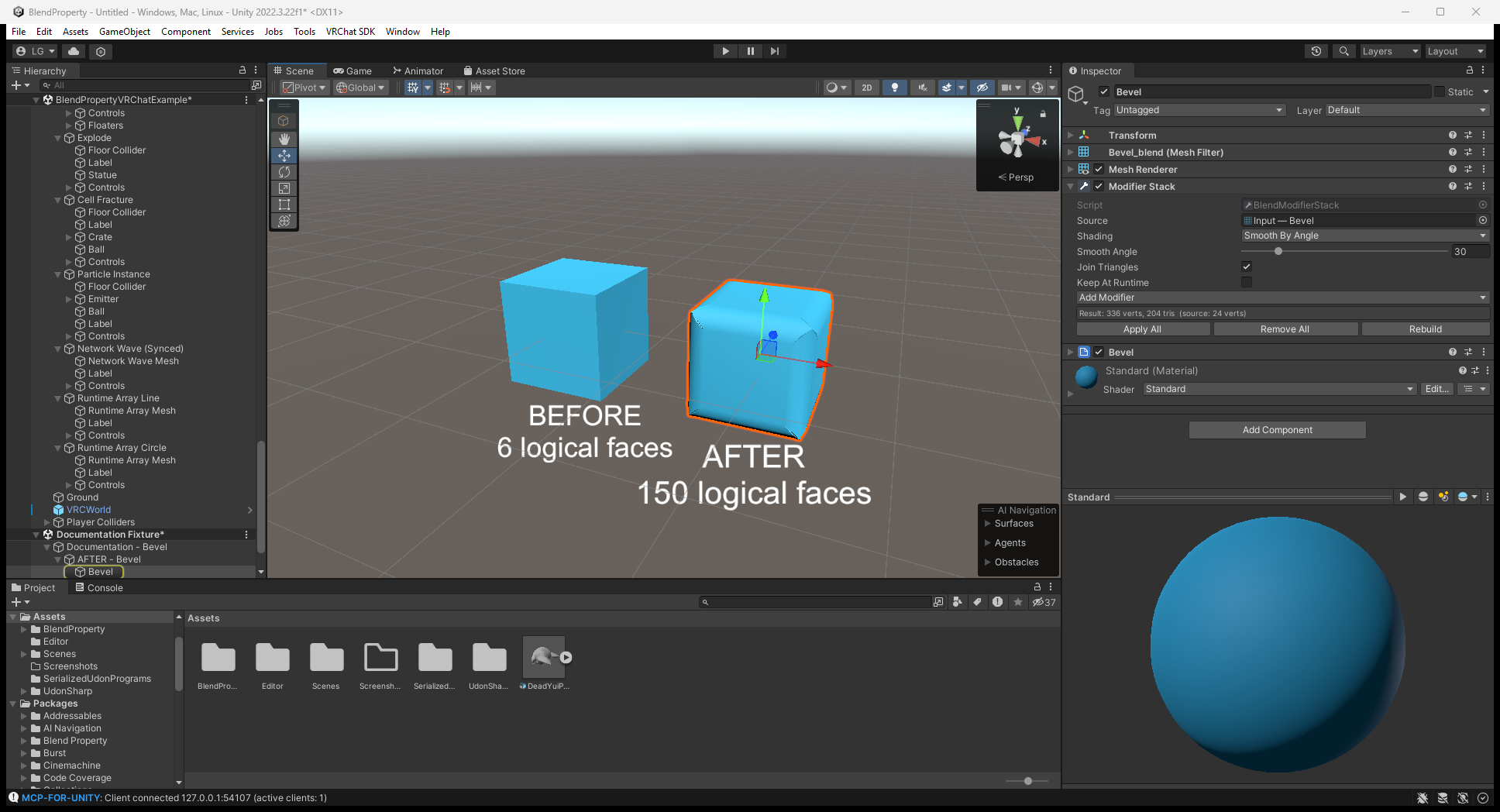
เปิดภาพขนาดเต็ม ภาพนำมาจากคู่มือต้นทางที่ตรึง tag บางภาพมีเลขเวอร์ชันใน Inspector เก่ากว่า 0.2.0 ด้านล่างแยกภาพตั้งค่า Editor ออกจากผล local ClientSim ชัดเจน
ตัวอย่าง
Scene ใต้ Example/ | เนื้อหา |
|---|---|
BlendPropertyExample.unity | Editor stack สิบชุด (รวม Unity Splines สองตัวอย่าง): Bevel/Subdivision, line/circle Array, Simple Deform, Wave, Boolean, Wireframe และ Lattice |
VRChat/BlendPropertyVRChatExample.unity | GPU modifier, physics station, Runtime Array และ shared panel สำหรับ VRChat project |
Standalone/BlendPropertyStandaloneExample.unity | เปลี่ยน Array count/Twist angle ด้วย RebuildNow() ใน project ที่ไม่มี VRChat SDK |
Editor example ไม่มี baked mesh ตอนเปิดครั้งแรกจะ rebuild และบันทึกผล หากติดตั้งด้วย Git ให้ copy example folder ไป Assets ก่อนแก้และบันทึก เพราะไฟล์ package เป็น read-only Runtime scene ที่เปิดผิดประเภท project อาจแสดง missing script
ProBuilder
Stack ยังทำงานขณะแก้ shape โหมดเลือก vertex/edge/face แสดง cage ที่ยังไม่ผ่าน modifier และ Apply เขียนผลกลับ ProBuilderMesh จึงยังแก้ต่อได้
Source และ license
Repository · คู่มือต้นทางที่ตรึงเวอร์ชัน · MIT license
หลัง modifier แรก ใช้ปุ่ม Add Modifier ของ stack เลือก Generate / Deform / Edit / Normals ได้ ตั้ง physics ผ่าน Blend Property > Physics > Physics Tab ดูPhysics และworkflow พร้อมภาพ